![[B] Bentley Publishers](http://assets1.bentleypublishers.com/images/bentley-logos/bp-banner-234x60-bookblue.jpg)
 Cart
Cart
Macintosh: How do I Configure AppleTalk?
-
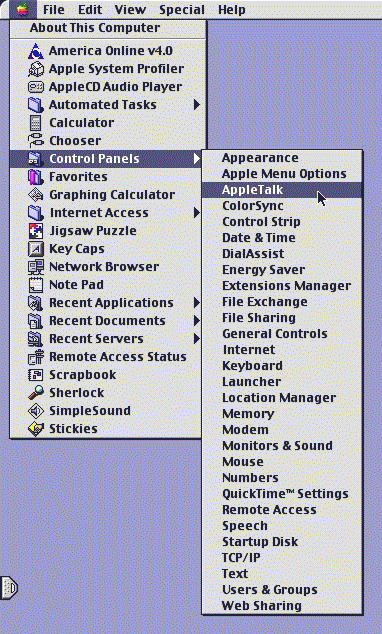
Click the Apple icon at the upper left corner of your screen. Select Control Panels from the list. Select AppleTalk from the next list that appears to the right of the first list. Your screen will look something like this:
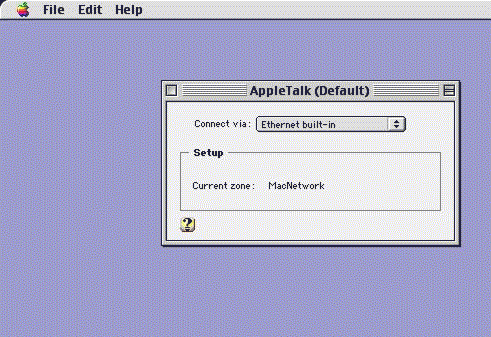
Your active AppleTalk configuration will now appear on your screen (your settings may be different than the sample shown below):
-
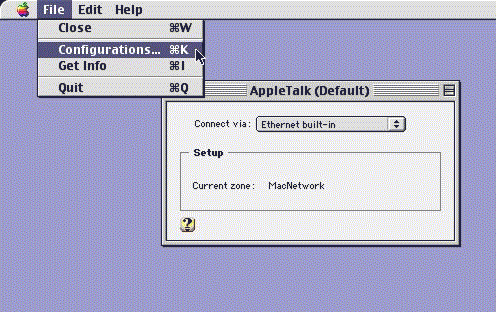
Select Configurations... from the File menu:
-
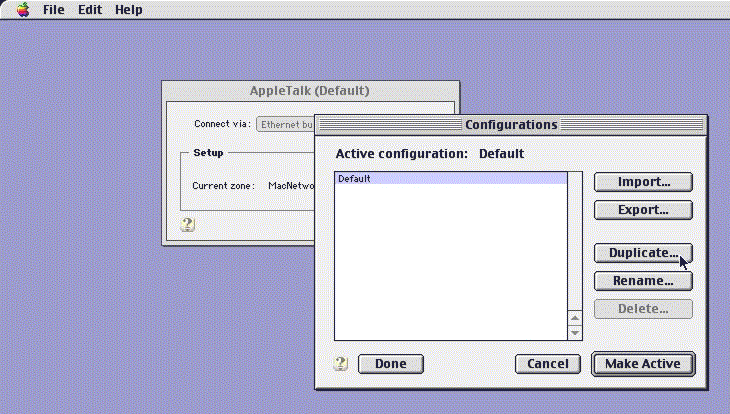
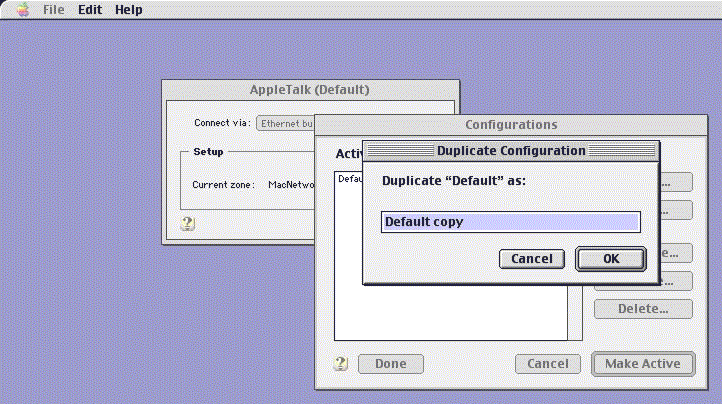
Highlight Default from the list of configurations (you may have more configurations listed than in the sample below) and click the Duplicate... button.
-
Your screen will look something like this:
-
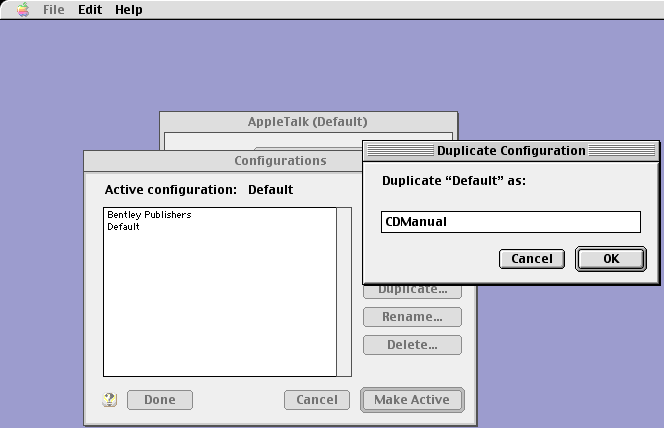
Replace the text Default Copy with CDManual by typing it into the text box. Click the OK button.
-
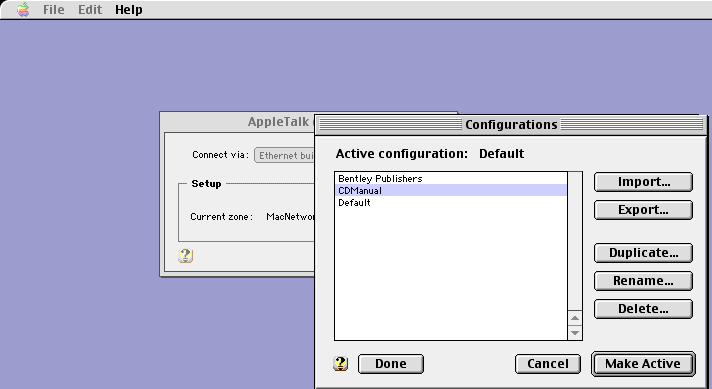
Highlight CDManual from the configurations list and Click the Make Active button:
-
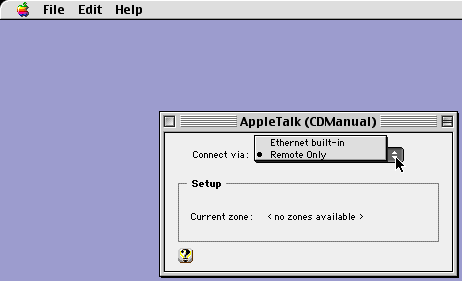
Choose Remote Only from the Connect via pull-down list:
-
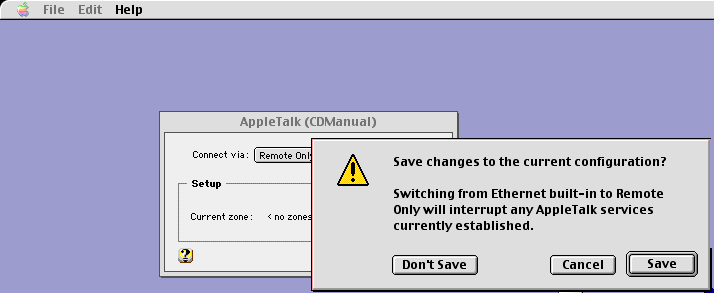
Close the AppleTalk (CDManual) window by clicking the small square at the upper left corner. You will be asked whether you want to save changes to this new configuration, click the Save button:
Last Modified: 2000-01-06
 Facebook
 YouTube